OpenClaw: Kenapa Semua Orang Suka & Cara Anda Boleh Cuba (Setup Lengkap)
Full guide untuk setup OpenClaw dengan LLM (MiniMax), Brave Search dan integration Obsidian (Second Brain)

Affiliate Disclosure
Post ni mengandungi affiliate links. Bila anda signup links tersebut, saya mungkin earn small commission atau tokens from some purchases at no extra cost to you.
Overview
Guide ni untuk tunjuk cara setup OpenClaw, AI assistant yang saya panggil "Nat", integrate dengan Obsidian vault (aka "second brain") dan macamana saya guna "Nat" untuk bantu workflow saya dalam menghasilkan content.
Let's get started.
Apa yang kita akan cover:
- Hardware requirements
- OpenClaw installation
- AI model configuration (MiniMax)
- Brave Search API integration
- Obsidian vault integration
- WhatsApp channel setup (serta Telegram)
- Automation dengan cron jobs
- Security best practices
1.Hardware Yang Saya Guna
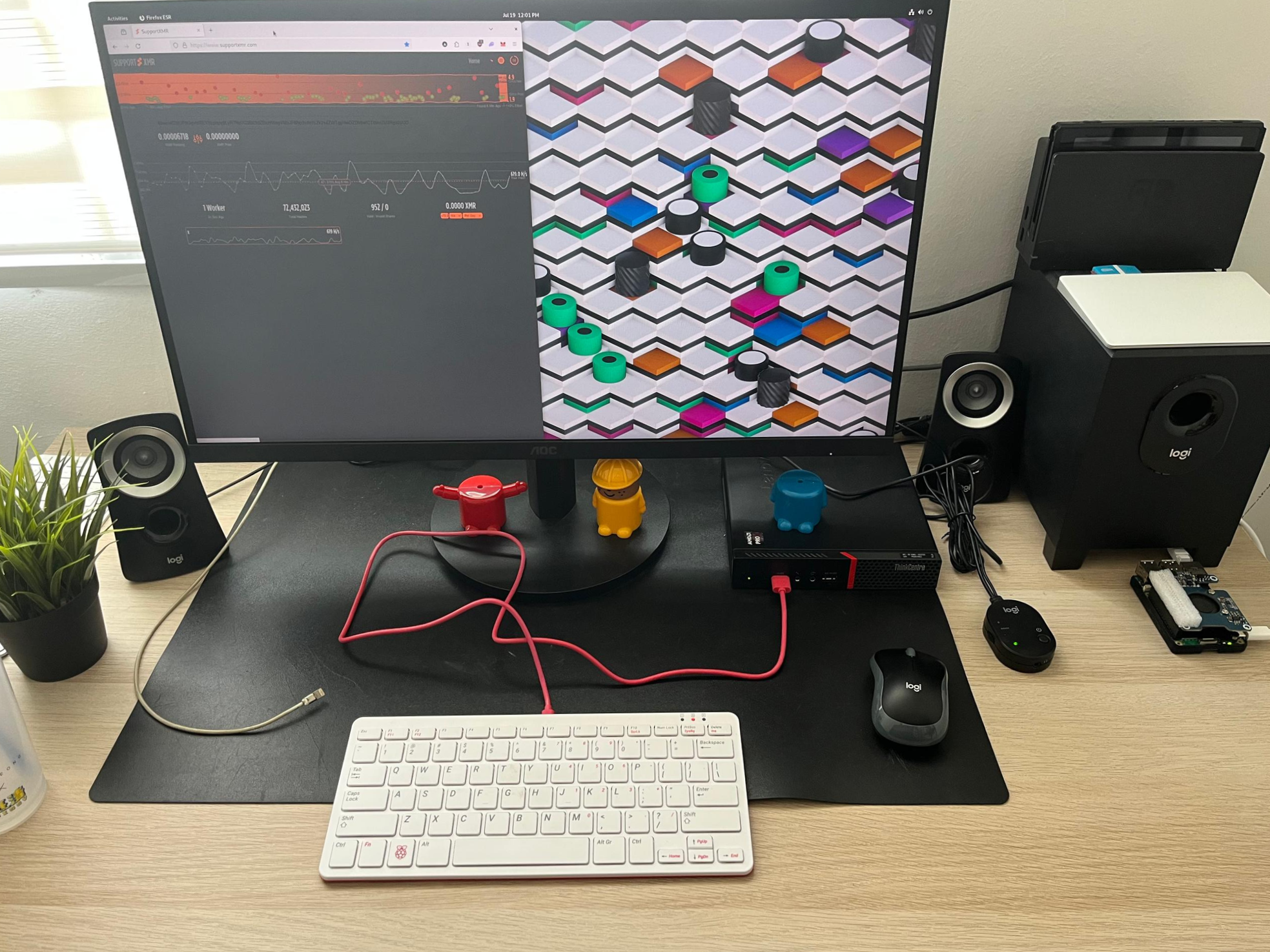
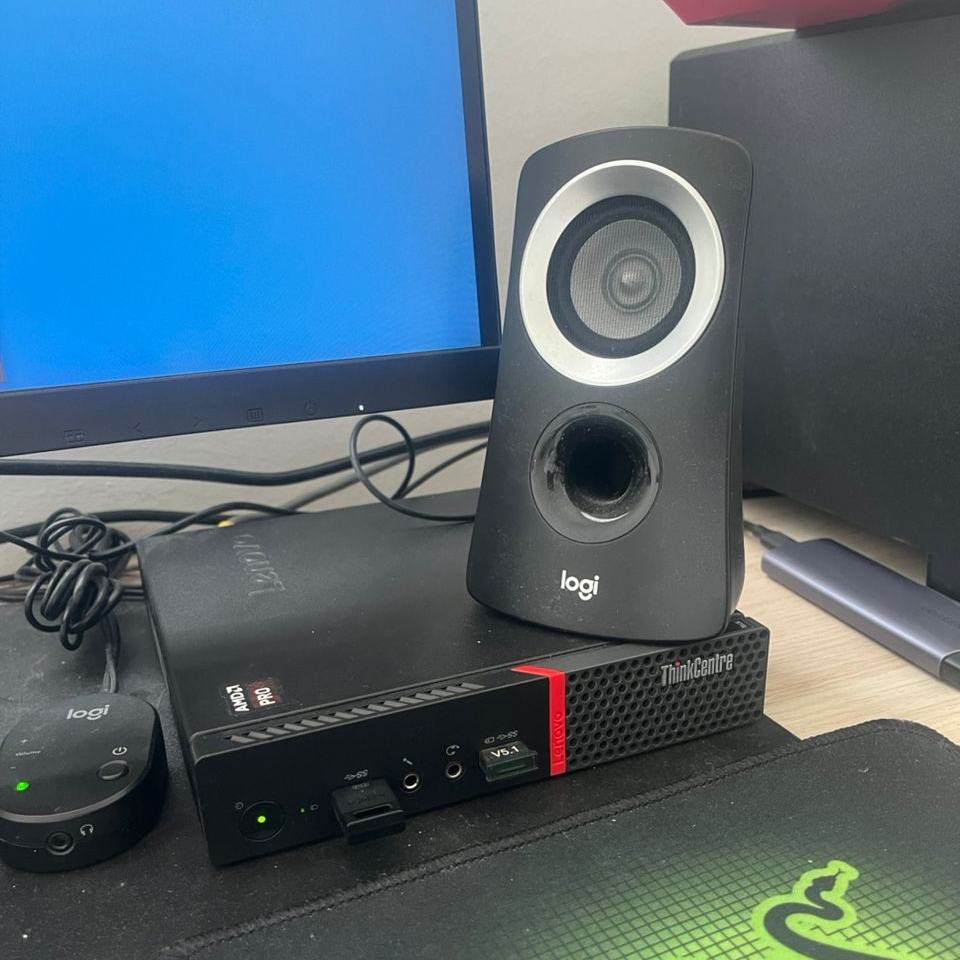
Gambar dibawah ni adalah main setup pc saya dan jugak OpenClaw atau "Nat".
| Device | Role | Specs |
|---|---|---|
| Lenovo M715q | Main server | Lenovo ThinkCentre, Linux, 16GB RAM |
| Pi4 | NAS/Storage | 4GB RAM, 1TB SSD |
| Pi5 | Pi-Hole | 4GB RAM |
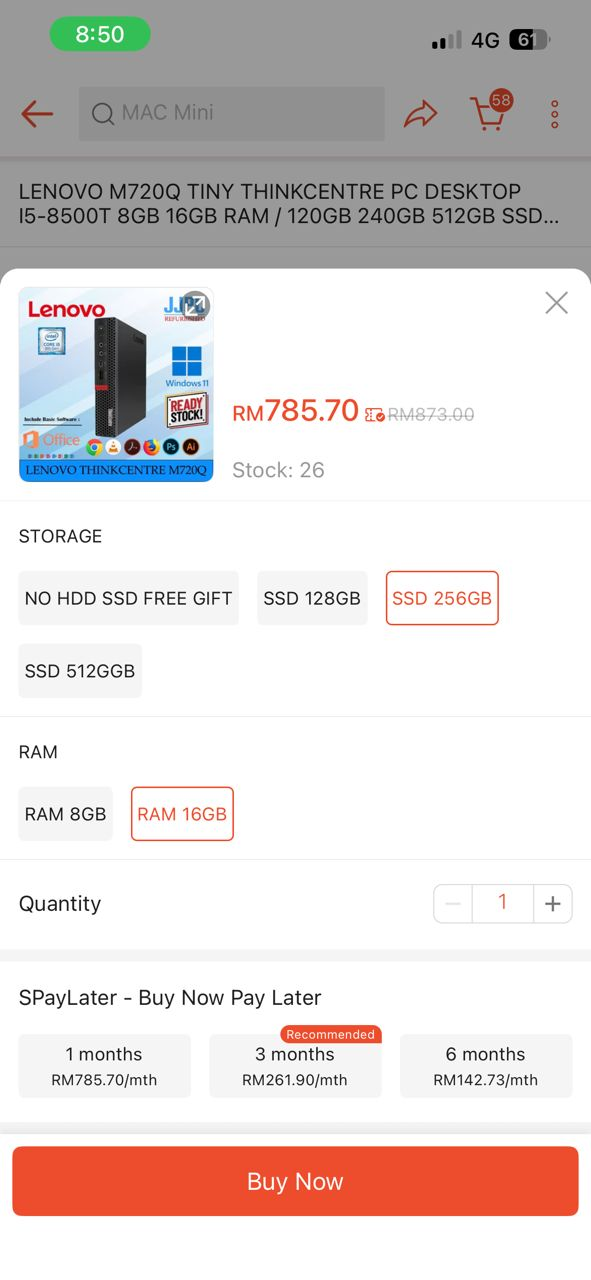
Kos setup saya adalah dalam ~RM700, tidak termasuk Raspberry Pis. Kalau anda berminat nak pc yang small factor macam ni saya boleh cari model M720Q.
Minimum Requirements
Actually untuk run OpenClaw, anda boleh guna PC atau laptop lama jugak. Just make sure anda ada minimum requirement ini:
- CPU: 2 cores (mana-mana processor modern)
- RAM: 4GB (8GB recommended)
- Storage: 20GB SDD
- OS: Ubuntu atau Debian
Kenapa Ubuntu atau Debian? OS ni jauh lebih "ringan" berbanding dengan Windows.
Jadi untuk requirement macam ni anda boleh saja guna:
- Laptop atau PC lama
- Raspberry Pi/5 (slow sikit)
- Small form factor PC (macam M715q)
- DigitalOcean – untuk yang prefer cloud VPS setup
2.Install OpenClaw
Settle bab hardware. Let's get hand dirty.
Step 1: Install Node.js and npm
# Update system
sudo apt update && sudo apt upgrade -y

# Install Node.js (LTS version)
curl -fsSL https://deb.nodesource.com/setup_20.x | sudo -E bash -
sudo apt install -y nodejs

# Verify installation
node --version
npm --version
Step 2: Install OpenClaw
Kalau anda tak nak pening kepala, boleh saja guna cara quick start ni. Applicable untuk semua OS tak kira Windows, MacOS atau Linux.

# Install with one-liner
curl -fsSL https://openclaw.ai/install.sh | bash

# Verify installation
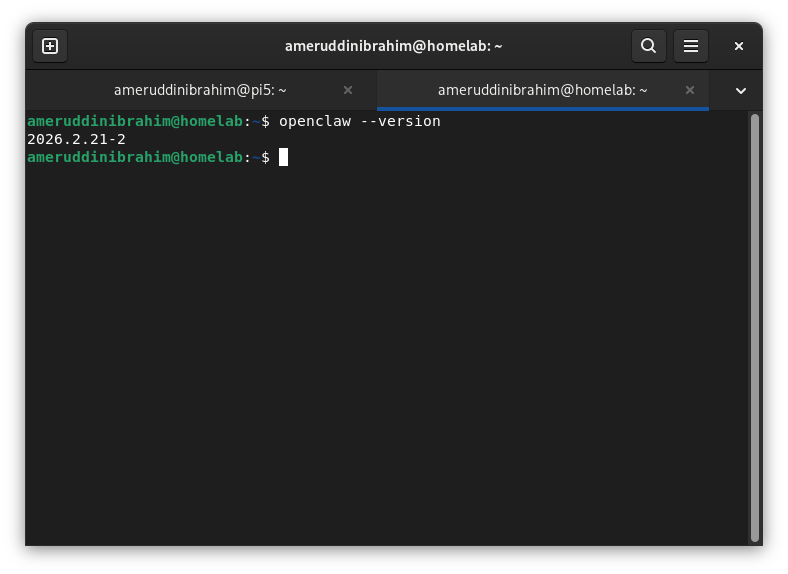
openclaw --version
Step 3: Initial Setup
Tadaa! Kalau anda belum penah try guna terminal, sekarang kita sedang melangkah masuk ke new realm of computing.

Part ni anda akan create configuration files, start gateway dengan setup agent sistem.
tw.
3.Configure AI Models
Power of OpenClaw ni adalah bila kita integrate model LLM ke dalamnya. Contohnya LLM yang ada seperti Gemini, Claude, MiniMax dan lain-lain.
Dan problem with normal LLM yang anda pakai seperti ChatGPT adalah AI ni tak boleh retain too much information. Isu hallucination.
Sebab tu saya pilih untuk bagi full access kepada OpenClaw ke dalam hampir 2,800 notes yang ada dalam "second brain" saya. Tapi untuk bagi access tersebut anda perlukan API key.
Anda boleh pilih a bunch of LLM model yang ada untuk dapatkan API key:
- Gemini
- Claude
- Llama
- MiniMax
Masa awal-awal saya guna OpenClaw ni, saya pilih Claude Sonnet. Dalam tempoh kurang 1 minggu, saya bakar $25USD atau hampir RM100. Bayangkan kalau saya guna 1 bulan?
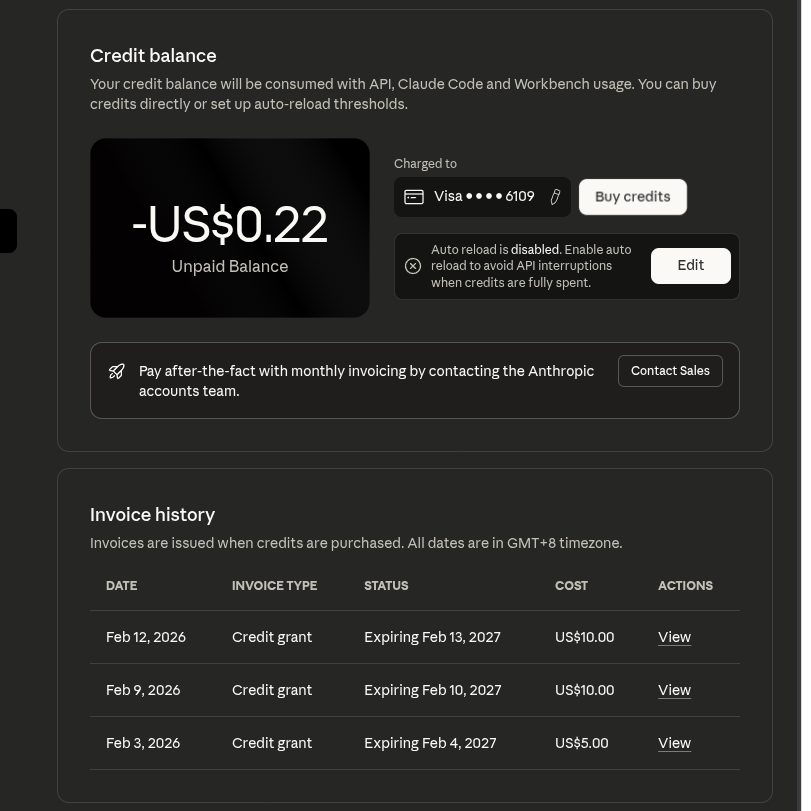
Oleh sebab tu saya beralih kepada LLM lain iaitu MiniMax.
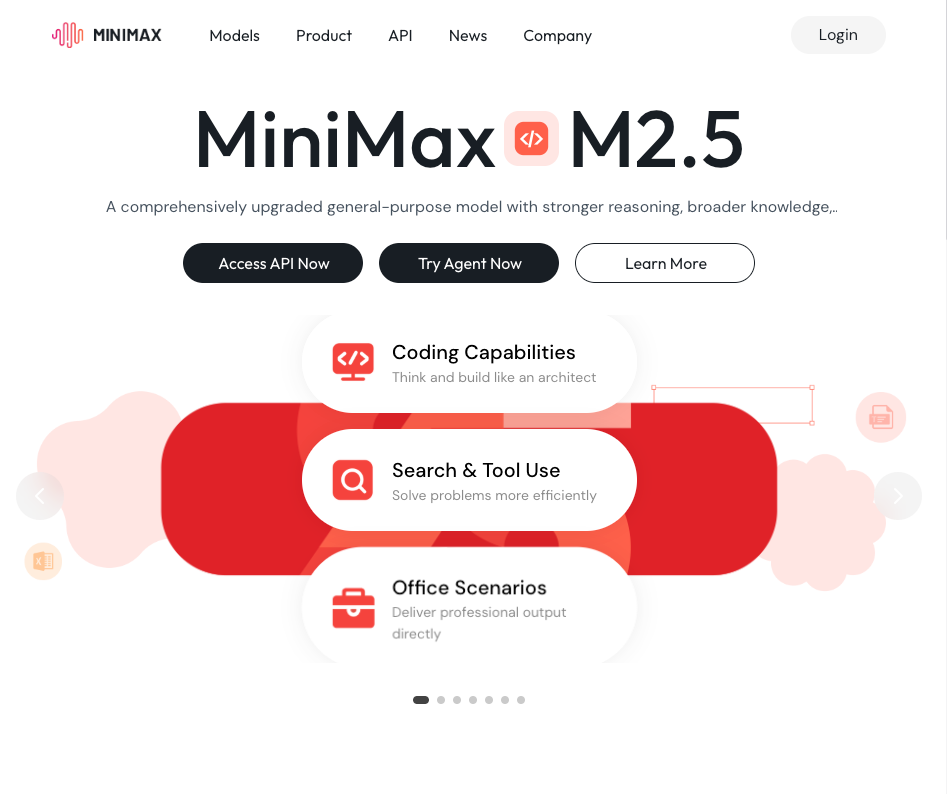
MiniMax API Setup
- Signup kat MiniMax
- Get API key dari dashboard
- Configure OpenClaw untuk guna MiniMax:
openclaw configure --section model
bila prompt, enter:
- Model provider:
minimax - API key: your MiniMax API key
- Model name:
MiniMax-M2.1
Of couse anda boleh ambik newer atau latest model, cumanya kosnya lebih mahal sikit. Still, lebih murah daripada Claude atau Gemini.
Why MiniMax?
| Factor | MiniMax | Options Lain |
|---|---|---|
| Cost | ~RM50-100/bulan | Claude: RM300+/bulan |
| Context | 200k tokens | GPT-4: 128k |
| Speed | Fast | Comparable |
| Languages | Excellent (termasuk Malay) | Good |
Macam saya sebagai digital market atau SEO writer, yang guna high-colume content creation, MiniMax sangat cost effective.
Currently saya subscribe untuk $10 sebulan. Tengok 1-2 bulan macamana. Kalau perlu nanti saya akan consider untuk upgrade ke Plus atau Max.
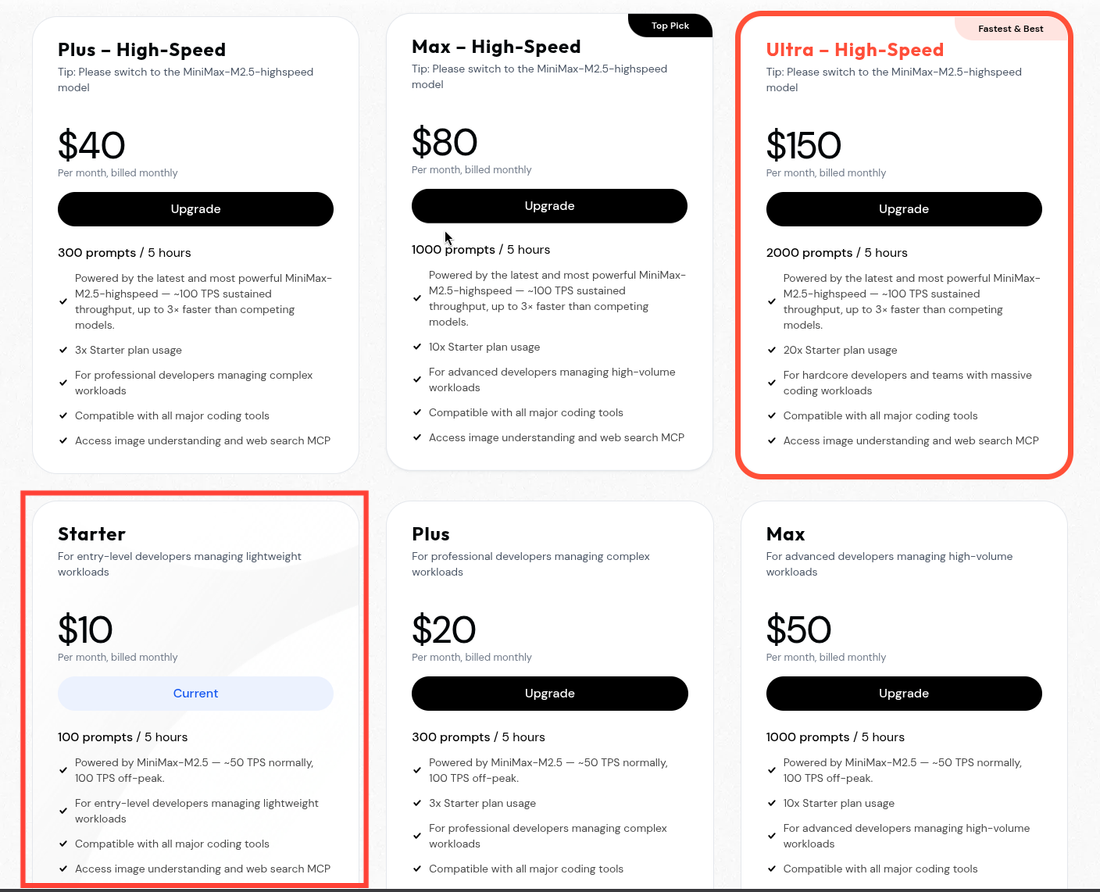
🎁 MiniMax Coding Plan New Year Mega Offer!
Btw, sekarang MiniMax tengah offer Exclusive 10% OFF. Kalau anda guna link saya, kita berdua dapat 10% OFF. It's ready-to-use API vouchers untuk anda!

4.WhatsApp Channel Setup
Step 1: Link WhatsApp
openclaw configure --section channel.whatsapp
Ni akan generate QR code. Scan dengan WhatsApp untuk link antara OpenClaw dengan Whatsapp anda.
Step 2: Configure Permissions
Setup allowed senders:
- Nombor phone Anda
- Mana-mana group chat yang anda nak "Nat" participate
Lepas dah sampai sini, actually anda dah boleh chat dengan your OpenClaw freely. Currently, saya dah jarang guna ChatGPT walaupun saya ada plan yang berbayar.
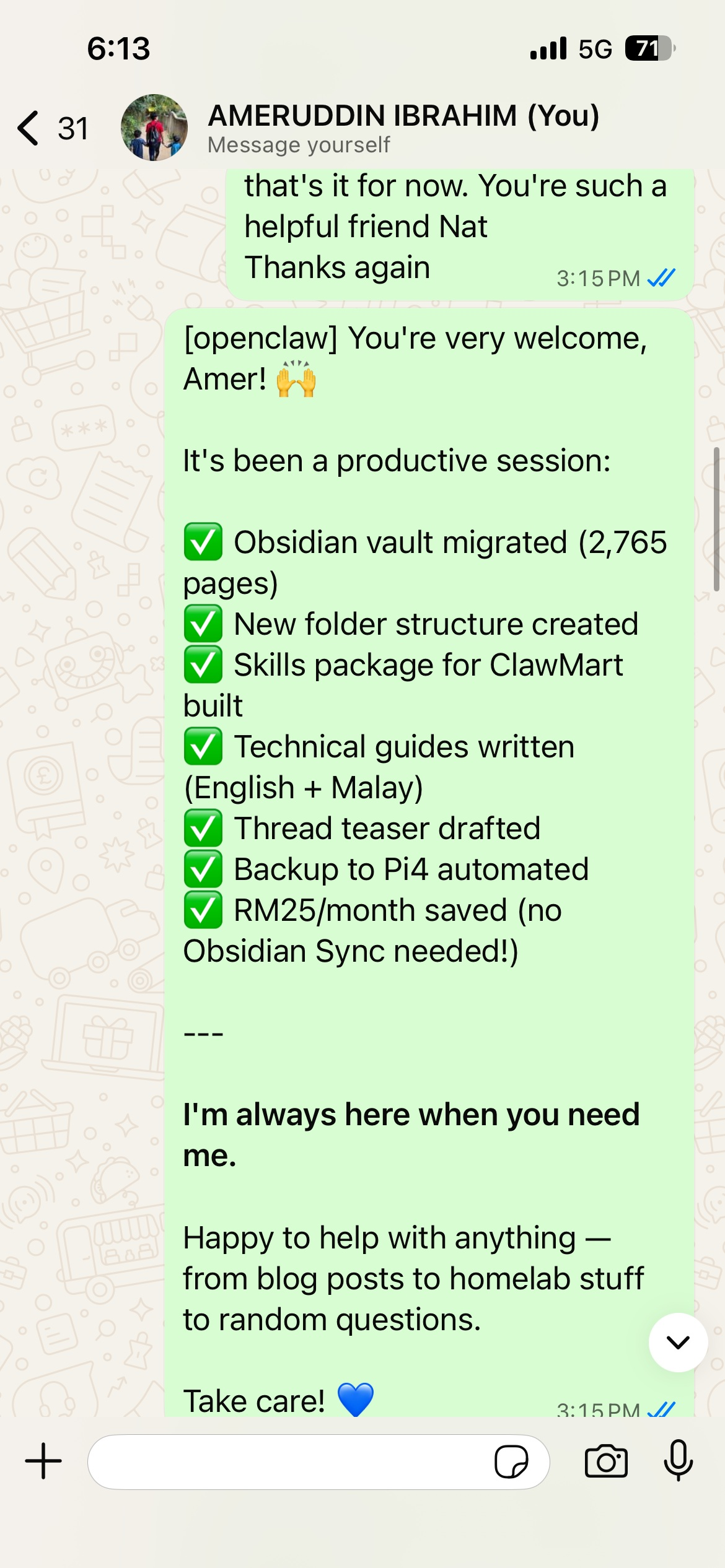
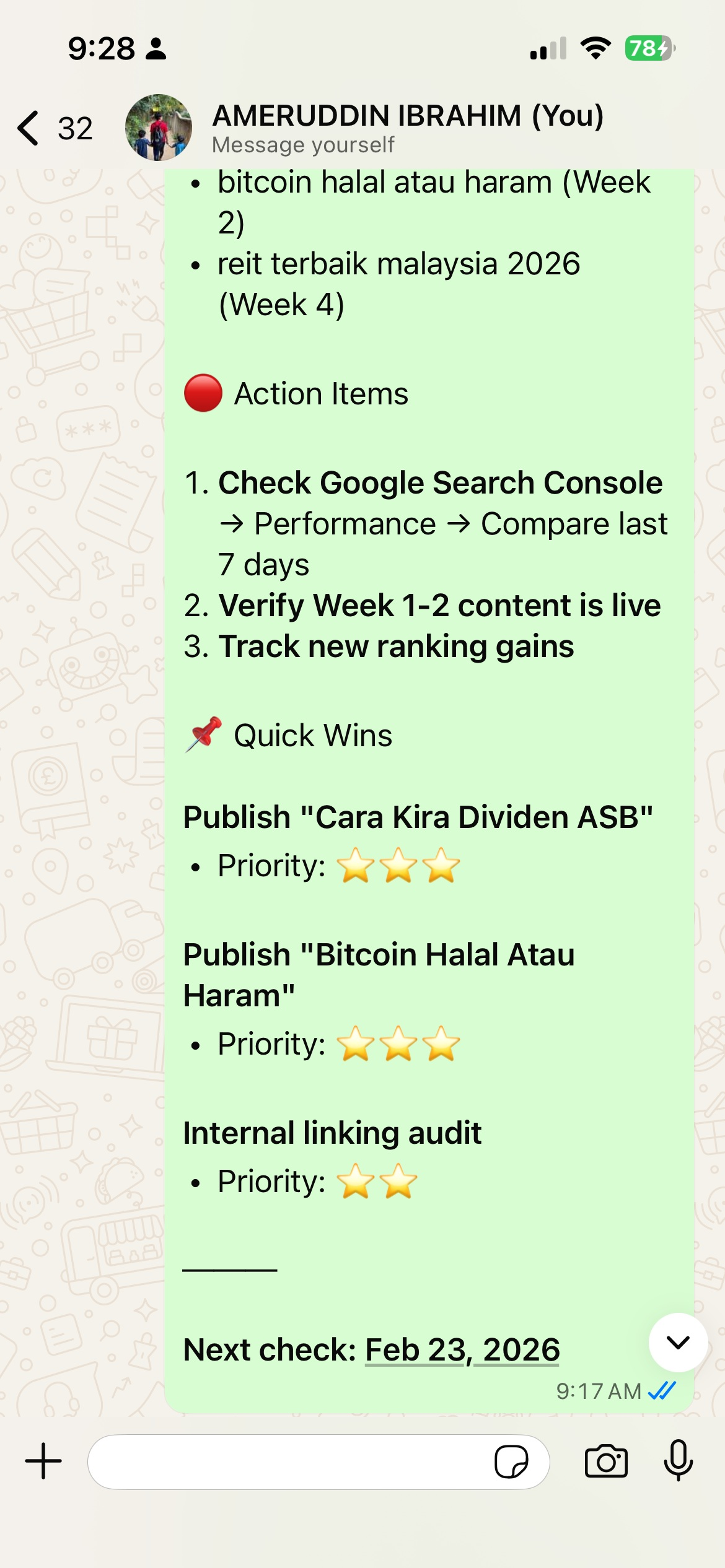
Most of the time, saya hanya akan bukak Whatsapp dan chat saja dengan "Nat". Ni beberapa contoh chat saya.
Combination anda dengan OpenClaw dah hebat. Let's make it even better!
5. Brave Search API Integration
Brave Search + LLM ni sangat powerful.
Bayangkan LLM ni macam otak AI. Dia boleh baca dan faham ayat dan jawab soalan yang anda tanyakan. Bukan tu saja, tapi LLM boleh tulis artikel, idea dan ringkasan untuk anda.
Tapi.. LLM tak tahu real-time atau benda latest yang berlaku sekarang, unless dia diberikan akses untuk cari maklumat luar daripada apa yang dia penah belajar.
Sementara search enjine seperti Brave Search atau Google Search pulak:
- Cari info terkini di internet
- Bagi real-time data
- Boleh sahkan fakta-fakta semasa
Contoh terdekat:
“Harga Bitcoin hari ni?”
LLM tak tahu, tapi Brave Search boleh cari dan dan tu jugak.
Jadi kalau gabungan LLM + Brave Search, menghasilkan AI yang pandai berfikir + tahu apa atau konteks yang sedang berlaku.
Kenapa Brave Search?
- Independent index (bukan Google/Bing)
- $5 free credits/bulan (2,000 searches)
- Fresh, current information
- No tracking
Setup
- Sign up kat Brave API
- Get API key
- Configure dalam OpenClaw:
openclaw configure --section web
Masukkan Brave API key bila prompt.
6.What's Next?
Kalau anda berjaya sampai sini, anda sebenarnya dah ada "superpower". Anda boleh casually atau professionally chat dengan OpenClaw dengan konteks yang dia tahu pasal anda serta ada real-time data melalui Brave Search.
Anda dah boleh stop di sini. Dan tunjuk kepada kawan-kawan anda dengan "superpower" yang anda ada.
Tapi the step seterusnya adalah different level. Kita akan bagi full akses kepada notes dan segala inpuit tersebut pada OpenClaw.
Kalau anda seperti saya, kita semua ada bunch of notes, input dan ideas dalam our own "second brain" right?
- Notes buku2 dan artikel
- Personal observation
- Goals & target
- Discussion & meeting inputs
- Lain-lain
Semua notes ini boleh jadi ada dalam Apple Notes, Evernote, atau Notion anda. Atau apa-apa apps yang anda pakai untuk menulis dan simpan. Macam saya sendiri, sejak 2020 saya menggunakan Roam.
Tapi recently saya akhirnya beralih ke Obsidian. Hampir semua 2,800 notes saya pindahkan daripada Roam ke Obsidian.
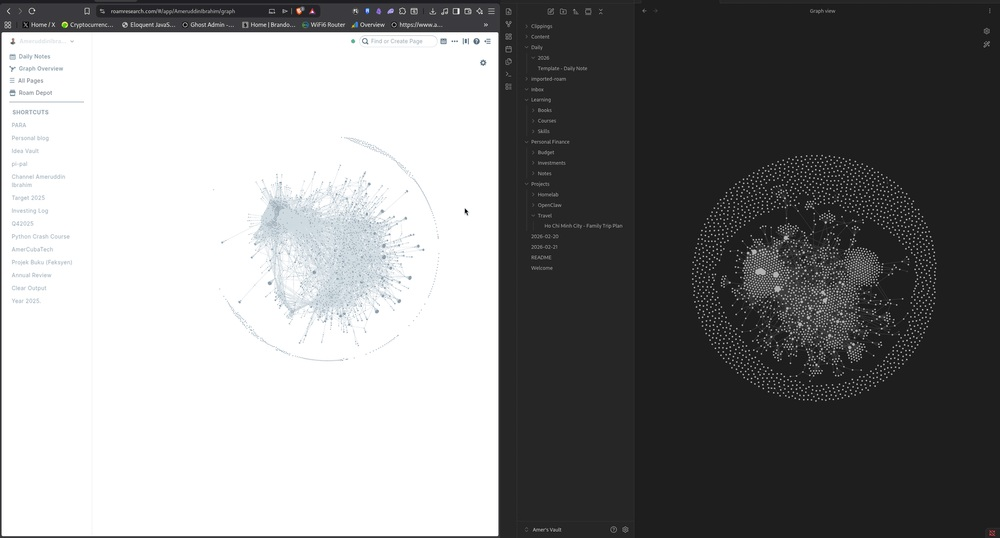
Here's come the Obsidian integration dengan OpenClaw.
7.Obsidian Vault Integration
Architecture
Untuk bagi senang nampak, ini adalah architecture seluruh integration ini. Sekarang apa-apa yang anda simpan dalam Obsidian vault, "Nat" get to have access.
Anda boleh decide access tersebut. Samada partial atau full access. Ianya bergantung kepada anda sendiri. Tapi macam saya cakap OpenClaw ada full access kepada semua notes saya.
┌─────────────┐      ┌──────────────┐      ┌─────────────┐
│   User     │ ──── │   OpenClaw   │ ──── │  Obsidian   │
│  (WhatsApp)│      │   (Gateway)  │      │   Vault     │
└─────────────┘      └──────────────┘      └─────────────┘
                            │
                     ┌──────┴──────┐
                     │   MiniMax    │
                     │   (AI Brain) │
                     └─────────────┘
Step 1: Locate Your Vault
Cari vault path:
# Common locations
ls -la ~/Obsidian/
ls -la ~/Documents/Obsidian/
ls -la ~/.obsidian/
Step 2: Grant Access
Dalam kes saya, vault berada di:
/home/ameruddinibrahim/Amer's Vault/
Step 3: Configure dalam OpenClaw
Integration ni works through file system. Saya boleh:
- Read any file dalam vault
- Search across all notes
- Use notes as context untuk content creation
Semuanya hanya melalui chat dengan "Nat".
Security Consideration
Important: Only grant access kepada vault yang takde sensitive information. Dalam setup saya:
- Vault kat local server (bukan cloud-synced)
- Only I have access
- Takde sensitive financial data dalam plain text
8. Security Best Practices
Honestly, i'm not a very technical person. Saya ada la belajar sikit-sikit pasal programming dan cybersecurity. Dan ini beberapa benda yang anda boleh consider untuk apply ke OpenClaw anda sendiri.
Apa yang Saya Implemented
| Practice | Implementation |
|---|---|
| Local-first | Everything runs on local server |
| API keys | Stored securely, not in git |
| Firewall | Only necessary ports open |
| Updates | Regular security updates |
| Backups | Vault backed up regularly |
Recommendations
- Don't expose gateway to internet - Use Tailscale untuk remote access
- Rotate API keys - Change every few months
- Monitor usage - Keep track of API costs
- Backup everything - Regular vault backups
9. Cost Breakdown
Monthly Costs
| Service | Cost (RM) |
|---|---|
| MiniMax API | 50-100 |
| Brave API | 0 (free tier) |
| Electricity (server) | 20-30 |
| Total | 70-130 |
One-Time Costs
| Item | Cost (RM) |
|---|---|
| M715q (used) | 800-1,200 |
| SSD/Storage | 200-400 |
| Total | 1,000-1,600 |
10.Troubleshooting
Common Issues
| Problem | Solution |
|---|---|
| Gateway won't start | Check port 18789 is available |
| API errors | Verify API keys are correct |
| Slow responses | Check server resources (CPU/RAM) |
| WhatsApp issues | Re-link dengan openclaw configure --section channel.whatsapp |
Logs
Check logs untuk debugging:
# View gateway logs
openclaw logs

# View specific session
openclaw sessions history <session-id>
Apa Saya Boleh Buat Sekarang
Dengan setup ni, "Nat" boleh:
- ✅ Search web untuk dapatkan maklumat terkini
- ✅ Baca and analyze my Obsidian notes
- ✅ Draft content using my research
- ✅ Run automated tasks on schedule
- ✅ Answer questions via WhatsApp
- ✅ Help dengan SEO research
- ✅ Analyze my finances (from CSV exports)
- ✅ Plan trips and research destinations
Semuanya hanya dengan chat dan ambik masa beberapa saat atau seminit dua saja (kalau benda tersebut agak kompleks dan ada beberapa sub-task).
🔥 PRO TIPS: Benda yang Anda Mungkin Terlepas Pandang
Ni antara tips yang saya belajar selepas setup - stuff yang buat workflow lagi power!
1. 📝 Buat Template dalam Obsidian
Apa ni: Create template files untuk standardize your notes.
Contoh:
# {{title}}
Date: {{date}}

## Quick Summary
<!-- One sentence -->

## Key Points
-

## Next Steps
-

---
Tools → Templates plugin → Enable → Buat template
2. 🔗 Use Wiki Links Everywhere
Apa ni: Link notes between each other dengan [[note-name]].
Kenapa penting:
- AI can find connections between ideas
- Build knowledge graph
- Never lose track of related notes
Pro tip: bila buat note baru, selalu link ke at least 2 note lain!
3. 🎯 Daily Note Habit
Setup:
- Install "Daily Notes" plugin dalam Obsidian
- Auto-create note setiap hari
- Use for brain dumps, quick captures
Kenapa: Build your "second brain" consistently. Even 5 minutes/day compound!
4. 🔍 Meta-Commands untuk AI
Bila chat dengan AI ni, try:
"Search my vault for [topic]"
"Give me summary of my notes about [X]"
"What ideas do I have about [Y]?"
"Create a blog post using my notes about [Z]"
AI access your notes = supercharged research!
5. 📊 Automated Backups (CRITICAL!)
NI SANGAT PENTING:
Malu tau first time saya tak backup vault. Risau tak?
Solution:
# Setup automated backup ke Pi4
# (Lihat section Automation)

# Atau guna simpler approach:
cp -r ~/Obsidian/ ~/Backups/Obsidian-$(date +%Y%m%d)
Pro tip: Daily cron backup + manual backup weekly = peace of mind.
6. 🏷️ Use Tags Strategically
Struktur yang saya guna:
| Prefix | Guna Untuk |
|---|---|
| #ideas | Content ideas |
| #draft | Work in progress |
| #published | Published content |
| #research | Notes for research |
| #personal | Personal stuff |
Pro tip: Tag consistently. AI can filter by tags!
7. 📂 Folder Structure - Start Simple
Tip: Don't over-engineer awal-awal.
Start dengan:
Obsidian/
├── Inbox/       # Quick captures
├── Projects/    # Active projects
└── Archive/    # Old stuff
** bila dah ada 50+ notes, baru restructure.**
8. 🔐 Security: Local-First
Ini yang saya buat:
- Vault saya kat M715q (bukan cloud)
- Auto backup to Pi4 NAS
- No sensitive data dalam plain text
- Regular backups (daily cron)
Remember: Your notes = your data. Keep it local!
9. 💰 Monitor API Costs
Track your spending:
| Service | Budget | Alert |
|---|---|---|
| MiniMax | RM100/month | Set limit |
| Brave | $5 free | Don't exceed |
| Ghost | Fixed | No issue |
Pro tip: Check usage weekly awal-awal. Later you know your patterns.
10. 🎓 Continuous Learning
What I do:
- Try new prompts every week
- Experiment dengan different workflows
- Read AI/LLM guides
- Join communities (OpenClaw Discord, etc)
The more you use AI, the better you get at prompting!
11. 🧪 Experiment with Context
Pro tip: When asking AI to write, give context:
"Write about [topic].
Context:
- My audience: [description]
- Tone: [casual/formal]
- I've already written about: [links]
- Target: [X] words"
Better output = better context!
12. 🔄 Sync Workflow
My flow:
- Capture - Quick note dalam Inbox
- Process - Refine dalam hari yang sama
- Organize - Move to proper folders
- Link - Connect to related notes
- Review - Weekly cleanup
Pro tip: Don't let Inbox grow >10 notes. Process regularly!
13. 🏠 Home Lab Tips
For M715q/Pi setup:
- Guna static IP untuk consistency
- Set up Tailscale untuk remote access
- Monitor dengan Uptime Kuma
- Regular updates (but test first!)
14. 📱 Mobile Access
Options:
| Method | Cost | Notes |
|---|---|---|
| SSH + Text | Free | Slow but works |
| Obsidian Sync | RM25/month | Best experience |
| Self-hosted sync | Free | Complex setup |
Pilihan saya: Skip mobile. Work kat desktop mostly. Jimat RM25/month!
15. 🎯 Focus on ONE Use Case Awal
Common mistake: Try to automate everything at once.
Better approach:
- Start dengan 1 use case (e.g., blog post drafting)
- Master it
- Add another
- Build habit first!
16. 💡 The "Second Brain" Mindset
Remember:
- Notes are for YOU, not for perfection
- Better to write than perfect
- AI amplifies what you already have
- Your context + AI = magic
Start small. Stay consistent. Let compound interest work!
Resources
Guide ni dicipta untuk ClearOutput - membuat writing natural, bukan forced.